DramaBox Network Error & Not Loading – Quick Fixes 2026
Your story reaches its biggest twist, you tap the next episode, and DramaBox answers with “Oops, network unstable” or a spinning loader that never ends. This guide explains why the DramaBox network error happens, how to tell whether the problem is your phone, your connection or the app itself, and the fixes that actually work.
Table of Contents
Why DramaBox Shows a Network Error
The DramaBox network error is one of the most searched problems for the app, and the frustrating part is that the message rarely tells you the real cause. “Oops, network unstable” can appear even when every other app on your phone loads perfectly. That is because DramaBox checks several things before it plays an episode: your connection, your account or guest session, the episode’s unlock status, and whether your app version is still accepted by its servers. If the real issue is your sign-in, our DramaBox login and account help covers session errors in detail.
In practice, the DramaBox oops network unstable message usually comes from one of five causes: a weak or switching connection, corrupted cache data, an outdated app version, a server-side change that blocks older or modified builds, or temporary trouble on DramaBox’s own servers. If you are new to how the app and its modified versions work, our complete DramaBox MOD APK guide explains the coin and VIP system that sits behind many of these checks.
The fixes below are ordered from fastest to most involved. Work through them in order and test an episode after each step, so you know exactly which one solved it.
Quick Checks Before Anything Else
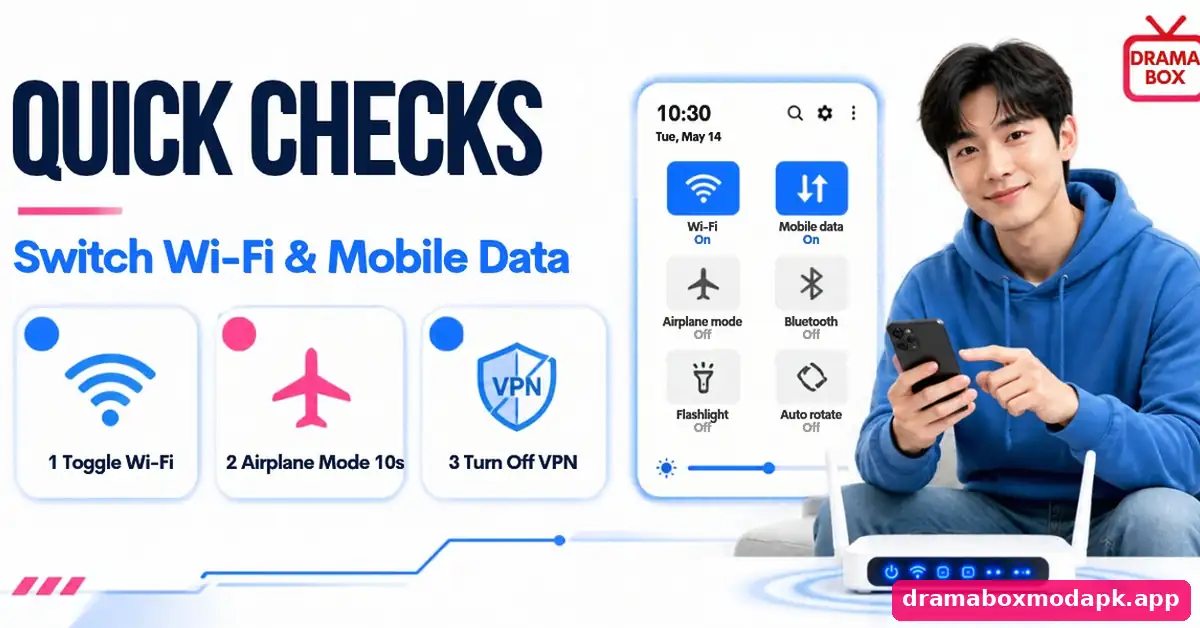
Switch your connection. Turn Wi-Fi off and try on mobile data, or the other way round. Many cases of DramaBox not loading come from a router that is technically connected but dropping packets. If the episode plays on the other connection, the app is fine and the problem is your network.
Turn airplane mode on for ten seconds. This resets the phone’s network stack without a full restart and clears stuck DNS lookups, a common hidden reason behind the DramaBox server error message.
Disable VPNs and data savers. VPNs, ad blockers and aggressive battery or data-saver modes often block the requests the app needs. Turn them off for a minute and test again. If you use the official DramaBox app, also check that background data is allowed for it in Android settings.
Restart the phone. It sounds basic, but a restart clears memory leaks that make DramaBox keep crashing or freezing on the loading screen after long sessions.
Clear Cache and Free Up Storage
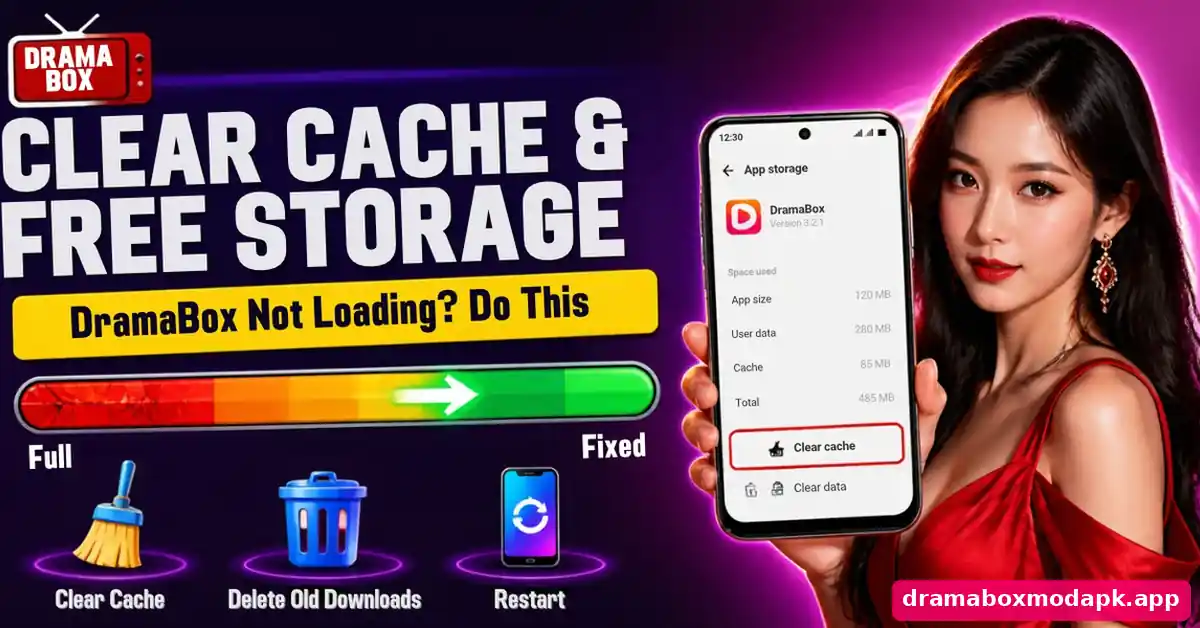
Short-drama apps save thumbnails, partial videos and session data constantly. When that cache becomes corrupted, the app can believe it has no connection even when it does. Go to Settings, then Apps, then DramaBox, then Storage, and tap Clear cache. Do not tap Clear data yet, because that signs you out and can remove downloaded episodes. Our offline download guide for DramaBox explains which downloads you would lose and how to get them back.
Low storage causes similar symptoms. If your phone has less than about 1 GB free, video buffers fail to write and DramaBox videos not playing becomes a daily problem. Delete a few large files, or if your phone is always short on space, consider the lighter DramaBox Lite APK instead of the full app.
Update or Reinstall DramaBox
DramaBox regularly changes how the app talks to its servers. When that happens, older versions can no longer request episodes, and the only message you see is a network error. Check the version number in the app’s settings and compare it with the latest release. Older releases from our DramaBox old version archive guide are useful on outdated phones, but they are also the builds most likely to stop connecting.
If updating does not help, uninstall the app completely, restart the phone, and install a fresh copy. A clean reinstall fixes most cases of the DramaBox app not opening after an interrupted update. Just make sure you install the same type of file you had before, because an official build and a modified build cannot update each other, as our comparison of the official APK and the MOD explains.
When a MOD Build Stops Connecting
If you see DramaBox MOD APK not working while the official app plays fine on the same phone, the cause is almost always server-side. DramaBox has detected or blocked the modified build, often right after an official update. No amount of clearing cache will fix that; you need a newer build made for the current app version, or you need to switch back to the official app for a while. Some viewers use that downtime to try another app, and our DramaBox vs ReelShort breakdown shows how the two compare.
Be careful when hunting for a “fixed” version online. Pages promising an instant working build are a common route for adware. Before installing any replacement, run through our checklist on how to tell whether a DramaBox MOD file is safe, and never type your main account password into a build you have not checked.
Videos Not Playing, Black Screen and Buffering
A DramaBox black screen with sound playing usually points to a video decoding problem rather than a network one. Lower the playback quality from the player menu, close other apps using the camera or screen recorder, and restart the app. On older phones, turning off “developer options” tweaks such as forced GPU rendering can also help. On a television the same idea applies, and our DramaBox Firestick and Android TV guide lists the TV-specific fixes.
For constant buffering, the most reliable DramaBox buffering fix is simply dropping the quality from HD to standard. Short-drama episodes look fine at lower resolution on a phone, and the stream becomes far more stable on weak connections. If you only want to preview a story while your connection is poor, the official DramaBox clips on YouTube often play more smoothly because YouTube adapts quality automatically.
Longer, film-style titles buffer more than short episodes because they load bigger chunks at once. If you mostly watch the titles listed in our Drama Box free movies guide, download them on Wi-Fi first when the build supports offline viewing.
Login Problems and App Not Opening
A DramaBox login problem often shows up as a network error, because the app cannot verify your session. Sign out, close the app fully, and sign in again. If you use Google or Facebook login, check that the same account is still active in your phone’s settings. Losing a session can also make it look as if your coins disappeared, so before you worry, sign back in and check your balance; our page on earning free DramaBox episodes explains how daily coins are stored on your account.
On iPhone the fixes are slightly different, because there is no APK to reinstall and no cache button in settings. Offloading and reinstalling the app from the App Store does the same job, and our DramaBox iPhone and iPad guide covers the iOS side in more detail.
Fixing DramaBox Errors on a PC Emulator
Emulators add one more layer that can break the connection. If DramaBox shows a network error inside BlueStacks or LDPlayer, first check that the emulator itself has internet by opening its built-in browser. Then switch the emulator’s network mode, update the emulator, and give it at least 4 GB of RAM. Our DramaBox on PC setup guide lists the settings that work best.
DramaBox Error Quick-Fix Table
| What you see | Most likely cause | Fix to try first |
|---|---|---|
| Oops, network unstable | Weak connection or blocked request | Switch Wi-Fi and mobile data, turn off VPN |
| Endless loading circle | Corrupted cache | Clear cache, then restart the app |
| Error right after an update | Old or mismatched version | Install the latest build of the same type |
| MOD fails, official works | Server blocking the modified build | Wait for an updated build or use the official app |
| Black screen with sound | Video decoding issue | Lower quality and restart the app |
| Keeps crashing | Low memory or storage | Free up space and restart the phone |
| Signed out, coins missing | Expired login session | Sign in again with the same account |
When the Problem Is Not on Your Side
Sometimes nothing you do will help, and it is better to know that early. Short outages on DramaBox’s servers happen, usually for less than an hour, and every user in your region sees the same error at once. Regional restrictions can also stop certain titles from loading. In both cases the honest answer is to wait rather than reinstall or download random files.
We also cannot promise that any modified build will keep working. When DramaBox changes its servers, modified versions can stop connecting overnight, and that is outside anyone’s control except the developer’s. Avoid any site that asks you to complete surveys, install extra apps or enter payment details to “fix” a network error. None of those steps fix anything. The same pages often push fake coin generators too, as our guide to DramaBox coins and VIP explains.
My Experience Fixing DramaBox Network Errors

I have run into the “Oops, network unstable” message more times than I can count while testing DramaBox on different Android phones. The first time, I assumed my Wi-Fi was the problem and restarted the router twice. It made no difference. What finally worked was clearing the app’s cache, which had grown to well over a gigabyte after a week of binge-watching. The next episode loaded instantly.
Another time the error appeared on every episode right after an official update, but only in a modified build. The official app on a second phone worked perfectly on the same Wi-Fi, which told me straight away that the build had been blocked. Reinstalling did nothing; only a newer build did. Since then, I always test on a second connection and a second app version before changing anything, and it saves a lot of wasted time.
Final Thoughts
Most DramaBox network errors come down to a weak connection, a bloated cache or an outdated version, and all three can be fixed in a few minutes. Work through the steps in order, test after each one, and keep a second connection handy to rule out your network. If the official app works but a modified build does not, the cause is on the server side, and patience or a newer build is the only real fix.
Frequently Asked Questions
Why does DramaBox say “Oops, network unstable”?
Why is DramaBox not working on Wi-Fi but working on mobile data?
Will clearing data delete my coins?
Why does DramaBox keep crashing after an update?
Can a DramaBox server error be fixed on my side?
Is it safe to download a “fixed” DramaBox APK?