DramaBox Download Episodes Offline – Full Guide 2026
Flights, long commutes and patchy mobile data are exactly when you want your next episode ready to play. This guide explains how DramaBox downloads work, how to save episodes properly, how much storage they take, why downloads sometimes fail, and what you can and cannot do with downloaded files.

Table of Contents
How DramaBox Downloads Actually Work
When you use DramaBox download episodes features, the app saves an encrypted copy of each episode in its own private storage. Only DramaBox can open those files, and only while you are using the same install. That protects the creators’ content, but it also explains several things people find surprising: you cannot move downloads to another phone, you cannot share them, and they disappear if you uninstall the app or clear its data. Your unlocks stay safe on your account, though, as explained in our DramaBox account and login help.
Downloads also respect the coin system. An episode you have not unlocked cannot be downloaded, and episodes from a limited-time free event may stop playing offline once the event ends. Our DramaBox VIP and coins guide explains which unlocks last and which expire.
How to Download DramaBox Videos

- Connect to Wi-Fi, because a full series can use a lot of data.
- Open the series and make sure the episodes you want are unlocked or currently free.
- Tap the download icon in the player or on the episode list. Some versions let you select several episodes at once.
- Open your profile and find the downloads section to check progress and play saved episodes.
- Before going offline, play the first few seconds of one downloaded episode to confirm it works.
If you do not see a download icon, your version or the title may not support offline viewing. Updating the app usually helps, and our walkthrough of the DramaBox app interface shows where the downloads area sits in recent versions.
Storage, Quality and Data Use
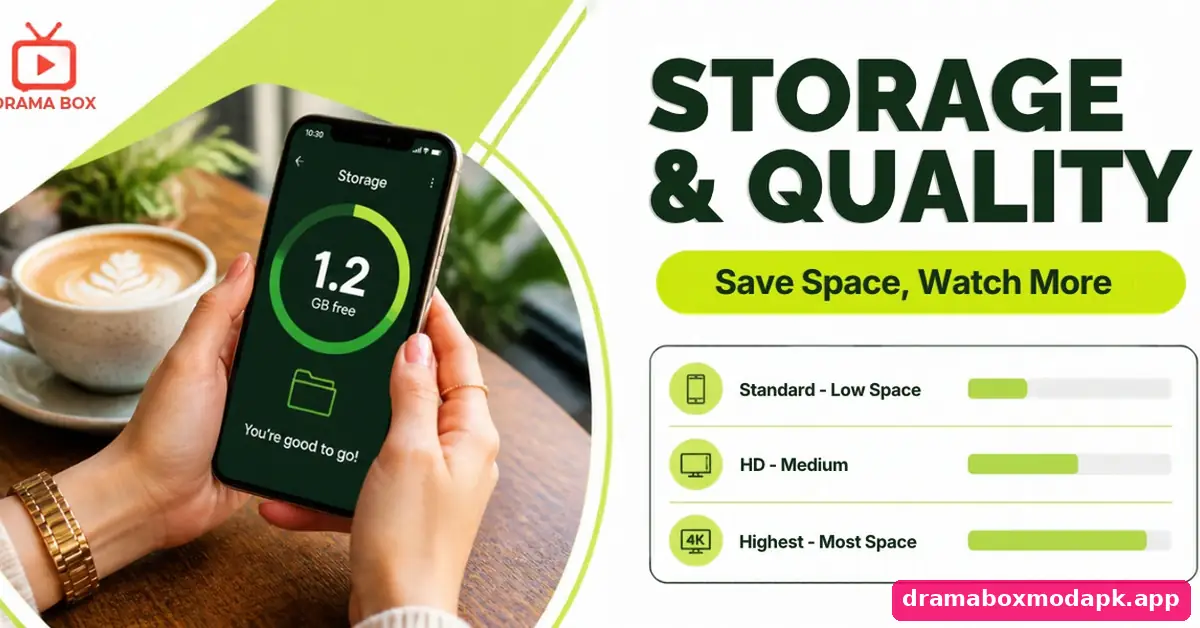
Each episode is short, but a series often has 60 to 100 of them, so downloads add up quickly. The exact size depends on the quality you choose and the title itself. Use this table as a rough planning guide rather than exact figures.
| Quality | Storage use | Best for |
|---|---|---|
| Standard | Lowest | Small screens, low storage, long trips |
| HD | Medium | Most phones and everyday viewing |
| Highest available | Highest | Tablets and large screens |
Keep at least 1 to 2 GB free before starting a big batch, otherwise downloads stop halfway. On phones that are always short on space, the official DramaBox Lite app for low storage leaves more room for saved episodes. To save DramaBox episodes more efficiently, delete each one after watching rather than keeping a whole library on the phone.
Download Limits and Expiry
Like most streaming apps, DramaBox can place a DramaBox download limit on how many episodes you keep saved at once, and some downloads need the app to go online briefly every so often to confirm you still have access. If you have been offline for a long time, open the app on Wi-Fi for a minute before your next trip so the licences refresh.
VIP members should also note that downloads made through a subscription usually stop playing once the plan ends, while episodes unlocked with coins stay available. That difference is worth knowing before you decide how to pay, and our guide to collecting free DramaBox episodes shows how to build a coin balance for the stories you want to keep.
DramaBox Download Not Working
Download stuck at 0%. Check that the app is allowed to use storage and background data, turn off battery saver, and stay on the app screen until the first episode finishes. Many phones pause downloads aggressively when the screen turns off. If downloads fail with a network message instead, see our DramaBox network error solutions.
Downloaded episodes will not play offline. This is usually an expired licence or an outdated app version. Go online, open the downloads section, and let the app refresh. On older builds, offline playback is often the first feature to break, as explained in our notes on rolling back to an earlier DramaBox version.
Downloads disappeared. Clearing app data, reinstalling or a phone cleaner app can wipe them. Exclude DramaBox from cleaner apps, and remember that downloads never transfer when you move to a new phone. They do not move to a TV either, so for big-screen viewing use our DramaBox Android TV and Firestick setup instead.
Downloads in Modified Builds
Offline viewing is one of the least reliable features in modified builds. Download logic is tied closely to the payment and licence checks that modders change, so downloads in a MOD often fail silently, refuse to start, or play once and then stop. Our official vs modified DramaBox comparison lists offline viewing as one of the clearest wins for the standard app.
Be wary of separate “DramaBox downloader” apps or websites that promise to grab episodes for you. They often bundle adware or ask for permissions a video tool should never need. If you are tempted to try one, run through our DramaBox APK safety checks first.
Watch DramaBox Without Internet

To watch DramaBox without internet, open the app before turning on airplane mode, go straight to the downloads section, and play from there. Opening the home screen first sometimes triggers a network error that makes it look as if nothing is saved. The DramaBox offline mode only shows what you downloaded, so plan your episodes before the trip. If you are still deciding which short drama app suits travellers best, our DramaBox and ReelShort comparison is a good place to start.
Longer stories are the best use of offline time. The titles collected in our list of DramaBox movie-length stories fill a whole flight with one download batch.
iPhone users follow the same steps inside the App Store version, which our iOS DramaBox guide covers in more detail, including how downloads behave when iOS offloads unused apps.
Can You Save DramaBox Episodes to Your Gallery?
No. A DramaBox download to gallery is not possible through the app, because downloads are encrypted and stay inside DramaBox. Screen-recording paid episodes to keep or share them also breaks the app’s terms and the creators’ copyright, and many phones record a black screen anyway because the player blocks capture.
If you want to watch on a bigger screen without the phone, the better options are casting or running the app on a computer through an emulator, as set out in our DramaBox desktop setup guide.
For quick previews without any download at all, official uploads in our YouTube full episodes collection work on any device and never fill up your storage.
My Experience With Offline Viewing
Before a long bus journey, I downloaded about forty episodes of a revenge drama on home Wi-Fi in standard quality. It took around ten minutes and less storage than I expected. On the bus, I made one mistake: I opened DramaBox from the home screen while offline, saw a network error, and briefly thought the downloads had failed. Going into the downloads section directly fixed it immediately.
I also tested downloads in a modified build on a spare phone. Two episodes downloaded, but neither would play offline, which matched what I had read. Since then I only rely on the standard app for trips, I always test one episode before leaving, and I delete everything I have watched the same evening so storage never becomes a problem.
Final Thoughts
DramaBox offline viewing works well once you understand its rules. Download unlocked episodes on Wi-Fi, keep enough free storage, refresh the app online now and then, and open the downloads section directly when you are offline. Downloads stay inside the app, cannot go to your gallery, and are least reliable in modified builds, so plan around the standard app for any trip that really matters.
Frequently Asked Questions Dramabox Download Episodes
Can I download DramaBox episodes for free?
Where are DramaBox downloads saved?
Why can’t I find the download button?
Do DramaBox downloads expire?
Can I move downloads to a new phone or SD card?
Do downloads work in a DramaBox MOD APK?