DramaBox Login & Account 2026 – Sign In & Fix Errors
Your DramaBox account is what keeps your coins, VIP plan, unlocked episodes and watch history safe. This guide covers every sign-in option, when guest mode is enough, how to move your progress to a new phone, how to fix login problems, and how to delete your account properly if you ever want to leave.
Table of Contents
DramaBox Sign-In Options
DramaBox does not use a classic username and password. Instead, it links your progress to an existing account from another service. The options you see depend on your device, region and app version, but the common ones are listed below.
| Method | Available on | Good to know |
|---|---|---|
| Android, often iPhone too | The most common DramaBox Google login; easiest for moving between Android phones | |
| Android and iPhone | DramaBox Facebook login works well if you keep the same Facebook account for years | |
| Apple ID | iPhone and iPad | Can hide your real email; ideal if you only use Apple devices |
| Guest | All devices | No sign-in at all; progress lives only on that one install |
Guest Mode vs a Real Account
DramaBox guest mode lets you start watching the moment the app opens. That is perfect for trying the app, but everything you earn as a guest, including daily check-in coins, unlocked episodes and your watch history, is tied to that single installation. Uninstall the app, clear its data or switch phones, and a guest profile is usually gone for good. That includes any check-in coins, which our DramaBox free coins guide shows how to collect on a proper account.
A linked DramaBox account solves that. Your balance and history live on DramaBox’s servers, so they follow you to any phone or tablet where you sign in. If you plan to collect coins through the methods in our guide to earning DramaBox episodes for free, link an account first, because building up a streak on a guest profile is risky.
How to Sign In to DramaBox
- Open DramaBox and tap the profile icon in the bottom menu.
- Tap the login or sign-in banner at the top of the profile page.
- Choose Google, Facebook or Apple, and confirm the account in the pop-up window.
- Check that your name or email now appears on the profile page, and that your coin balance looks right.
The DramaBox sign in process takes less than a minute. If you have been watching as a guest, sign in from the same install, because many versions then link your existing guest progress to the new account instead of starting fresh. The official DramaBox app review shows where the profile and rewards tabs sit in the current interface.
Syncing Devices and Watch History
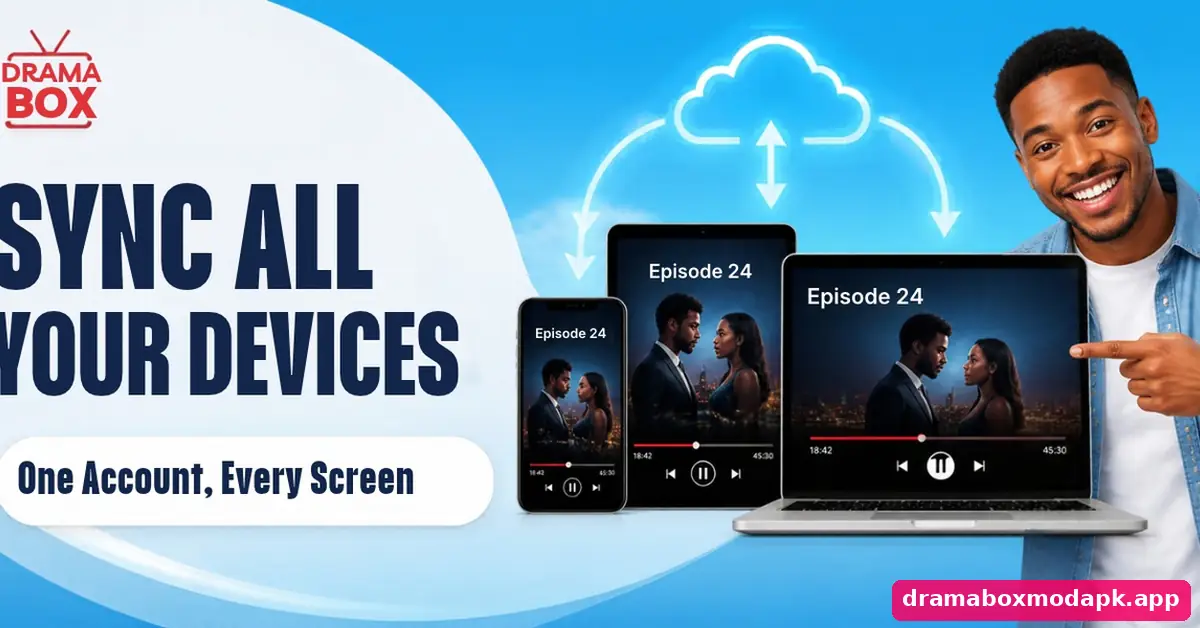
To DramaBox sync devices, simply sign in with the same method on each one. Coins, VIP, unlocked episodes and your DramaBox watch history then appear on every device, usually within a few seconds of opening the app. The one thing that never syncs is downloaded episodes, because those are files stored on the device itself. Our guide to saving DramaBox episodes offline explains how downloads work on each device.
The same account works across platforms too. You can start a series on an Android phone and finish it on an iPad, as long as you use a sign-in method available on both, such as Google or Facebook. Our page on running DramaBox on iPhone and iPad explains which options appear on Apple devices.
Watching on a laptop works the same way: sign in inside the emulator with your usual account, as described in our guide to running DramaBox on a laptop or desktop, and your progress carries straight over.
Fixing DramaBox Login Problems
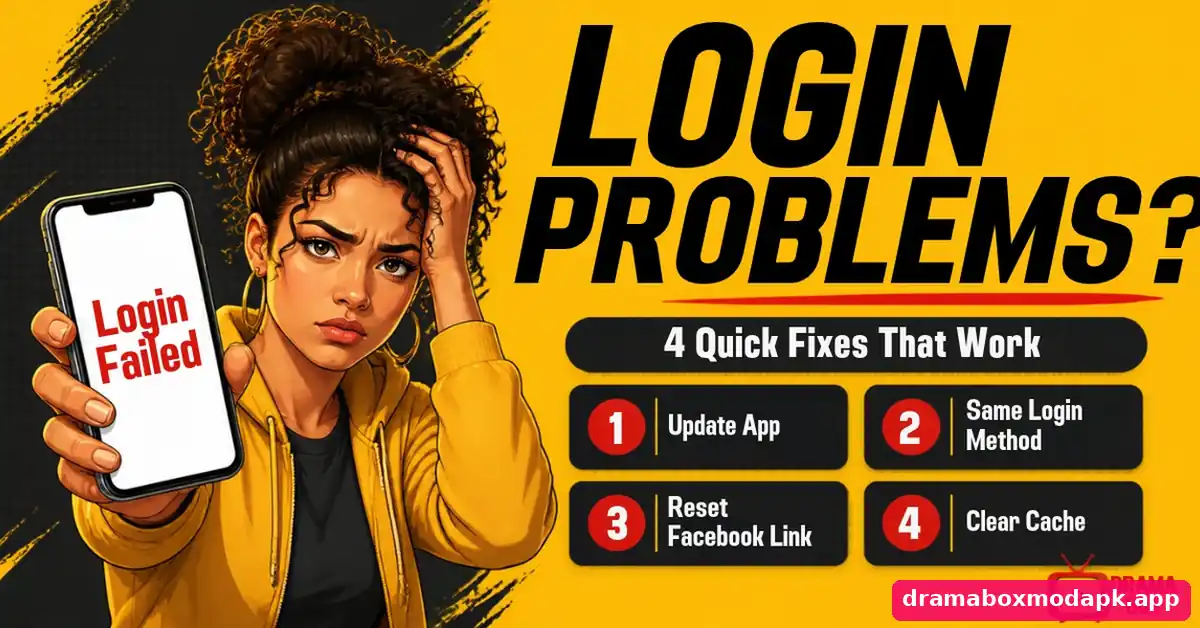
The sign-in window closes or spins forever. Update DramaBox and Google Play Services, then try again. Outdated versions often break the login pop-up. If you are on an older build to save storage, the official DramaBox Lite build is a lighter alternative that still supports modern sign-in.
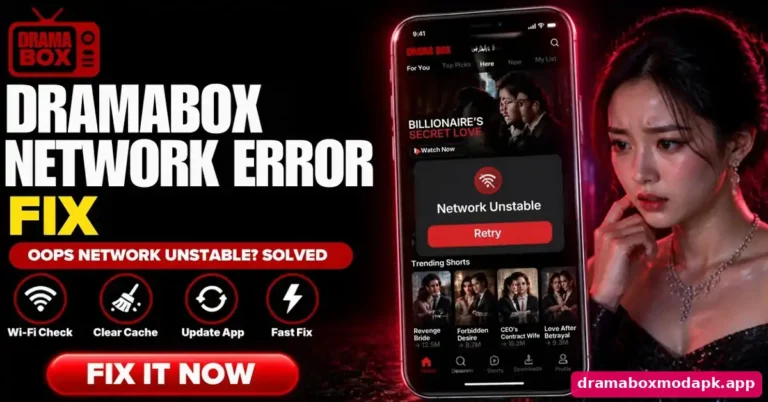
You signed in but your coins are missing. You almost certainly used a different method than before, for example Google instead of Facebook, which creates a brand-new empty account. Sign out and try your other login options one by one until your balance appears. If the login screen itself keeps failing to load, our DramaBox oops network unstable fix covers connection-related login errors.
Login fails on a modified or very old version. Third-party and outdated builds often lose working sign-in after DramaBox updates its servers. Our notes on older DramaBox versions and their limits explain why rolling back can break logins.
Facebook login loops back to the start. Open the Facebook app or website, go to the apps and websites section of your settings, remove DramaBox, and then log in again so the permission is created fresh. On a television you sign in the same way, as shown in our Firestick and Android TV install guide.
Using a MOD Build Without Login
Many people look for DramaBox MOD APK without login, and in this case that is actually the safer habit. A modified build is not checked by any official store, so typing your main Google or Facebook details into it gives an unknown app access to an account you use everywhere else. Watching as a guest in a modded build keeps that risk away from your real accounts.
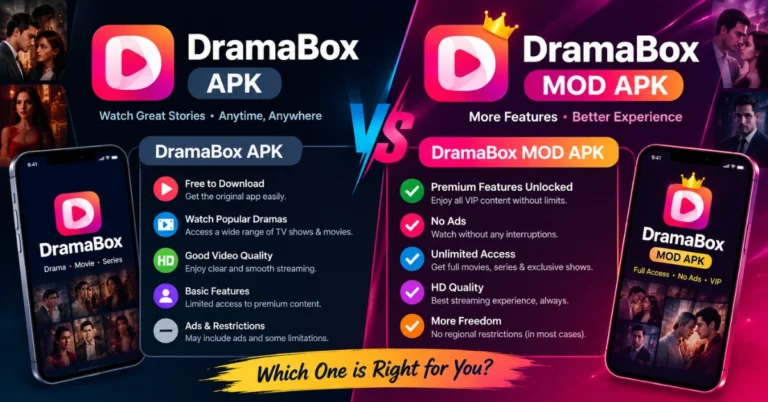
The trade-off is that nothing syncs, and coins shown in a mod never reach your official account anyway. Our comparison between the official DramaBox APK and the MOD covers exactly what you give up by staying signed out.
Keeping Your Account Secure
Because your DramaBox account rides on Google, Facebook or Apple, its security is only as strong as that main account. Turn on two-step verification there, and never share login codes with anyone claiming to “add coins” or “restore VIP”. DramaBox support will never ask for your password.
Be especially careful with websites that offer free coins in exchange for your login. They are phishing pages, and the same warning signs appear in our DramaBox security and safety guide. If you ever entered your details on one, change your Google or Facebook password straight away and review the apps connected to that account.
How to Delete Your DramaBox Account
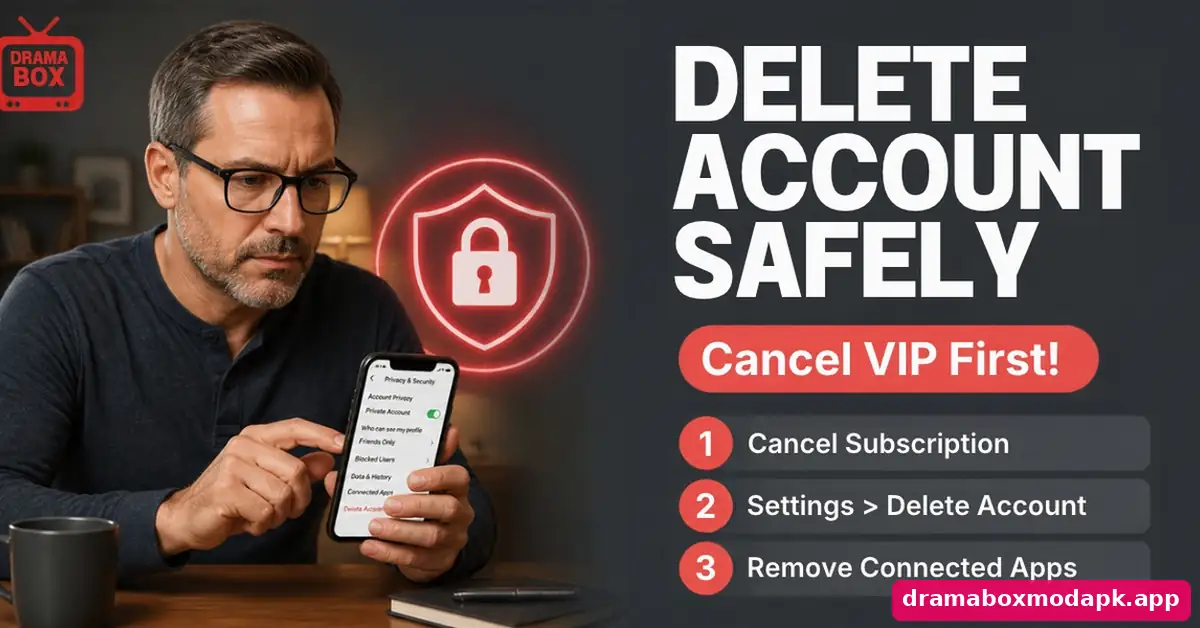
- Cancel any VIP subscription first in Google Play or App Store subscriptions. Deleting the account does not stop store billing.
- In DramaBox, open your profile, then Settings, and look for an account or delete-account option.
- If the option is not shown in your version, use the in-app feedback or help section to request deletion.
- Finally, remove DramaBox from the connected apps list in your Google, Facebook or Apple account settings.
Before you confirm a DramaBox delete account request, remember that any remaining coins, VIP time and unlocked episodes are lost permanently and cannot be refunded. If you only want a break, signing out and uninstalling keeps everything waiting for you. If you are leaving to try another app, our honest DramaBox vs ReelShort comparison can help you decide first.
Before You Switch Phones
Take a screenshot of your profile page showing which login method you used and your coin balance. On the new phone, install DramaBox, sign in with that exact method, and compare the balance. Downloaded episodes will need to be downloaded again. While you wait for big downloads, the official clips in our DramaBox YouTube episodes roundup are an easy way to keep watching.
If you like to keep a few stories saved for travel, longer titles from our free DramaBox movies page are worth downloading on Wi-Fi as soon as the new phone is set up, since big files eat mobile data quickly.
My Experience Managing a DramaBox Account
I learned the guest-mode lesson the hard way. On my first test phone I watched as a guest for two weeks, kept a daily check-in streak and unlocked a good number of episodes. Then I cleared the app’s data to fix a playback bug, and the entire profile disappeared, coins and history included. Since then I always link an account before collecting any rewards.
The second surprise came when I moved to a new phone and signed in with Google out of habit. The balance showed zero, and for a moment I thought the coins were gone. I had originally used Facebook. After signing out and choosing Facebook instead, everything came back within seconds. Now I keep a note of which login I used for each app, and it has saved me a lot of worry.
Final Thoughts
A linked DramaBox account is the simplest way to protect everything you earn and buy in the app. Use guest mode only for testing, remember which login method you chose, and secure that main account with two-step verification. Keep your real logins out of modified builds, cancel subscriptions in the store before deleting anything, and your progress will follow you safely from phone to phone.
Frequently Asked Questions
Do I need an account to use DramaBox?
Why did my coins disappear after I logged in?
Can I use one DramaBox account on several devices?
Can I change my DramaBox login from Facebook to Google?
Does deleting DramaBox cancel my VIP subscription?
Is it safe to log in to a DramaBox MOD APK?