DramaBox on Firestick & Android TV – Easy Install 2026
Short dramas are made for phones, but cliffhangers hit harder on a big screen. This guide shows every working way to watch DramaBox on a Firestick, Android TV, Google TV or TV box, from sideloading with Downloader to simple casting, plus the remote and display tricks that make a phone app usable on a television.
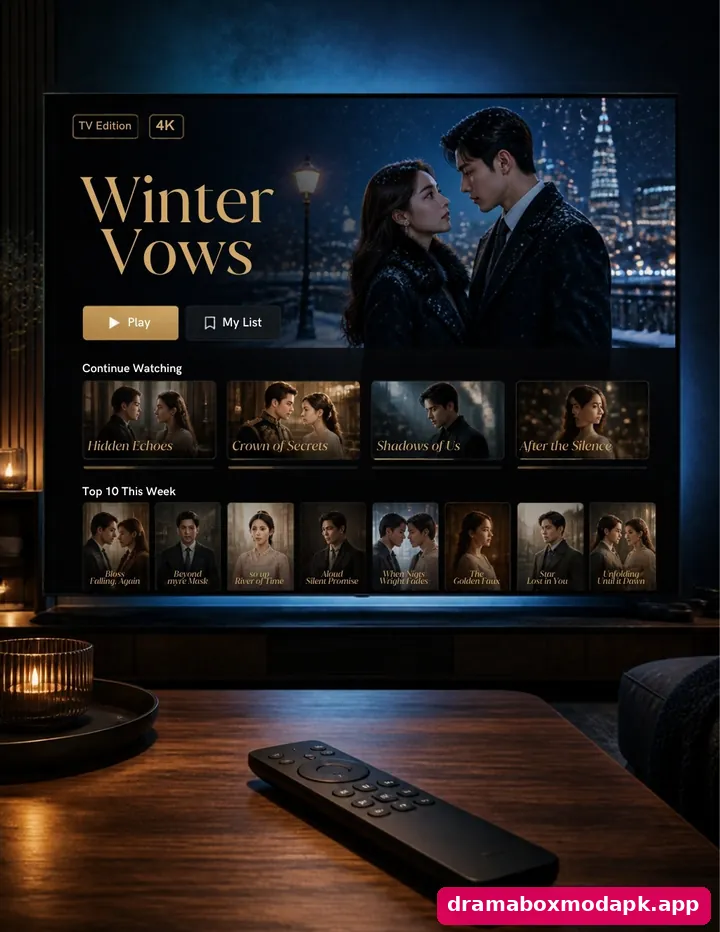
Table of Contents
Which Method Fits Your TV?
DramaBox does not offer a dedicated TV edition in most regions. The app you install on a television is the same Android app built for vertical phone screens, which is why the method you choose matters. Pick the row that matches your hardware, then jump to that method below. If you are still choosing an app for family viewing, our comparison of DramaBox and ReelShort is worth a quick read first.
| Your device | Best method | Difficulty |
|---|---|---|
| Android TV or Google TV | Install the APK directly | Easy |
| Amazon Firestick or Fire TV | Sideload with the Downloader app | Medium |
| Any smart TV with Chromecast or screen mirroring | Cast from your phone | Easiest |
| Android TV box, Mi Box or similar | APK via USB drive or Downloader | Easy |
| Samsung Tizen or LG webOS without casting | Not supported directly | Use a stick or cast |
Method 1 – Android TV and Google TV
Sony, TCL, Hisense, Philips and many other brands run Android TV or Google TV, which means a DramaBox Android TV APK installs just like it would on a phone. First search the TV’s Play Store for DramaBox; if it is not listed for TV in your region, sideload the APK instead. Once it is installed, sign in with your phone account as explained in our guide to DramaBox accounts and syncing.
- Open Settings, then Device Preferences, then Security and Restrictions, and allow unknown sources for the app you will use to install files.
- Install a file manager or the Downloader app from the TV’s Play Store.
- Copy the APK to a USB drive, or download it directly inside Downloader.
- Open the file, tap Install, and launch DramaBox from the Apps row.
Most DramaBox Google TV setups work the same way. Sign in with the same account you use on your phone so your coins, watch history and unlocked episodes carry over; our overview of the regular DramaBox app and its features explains what syncs and what does not.
Method 2 – Install DramaBox on Firestick
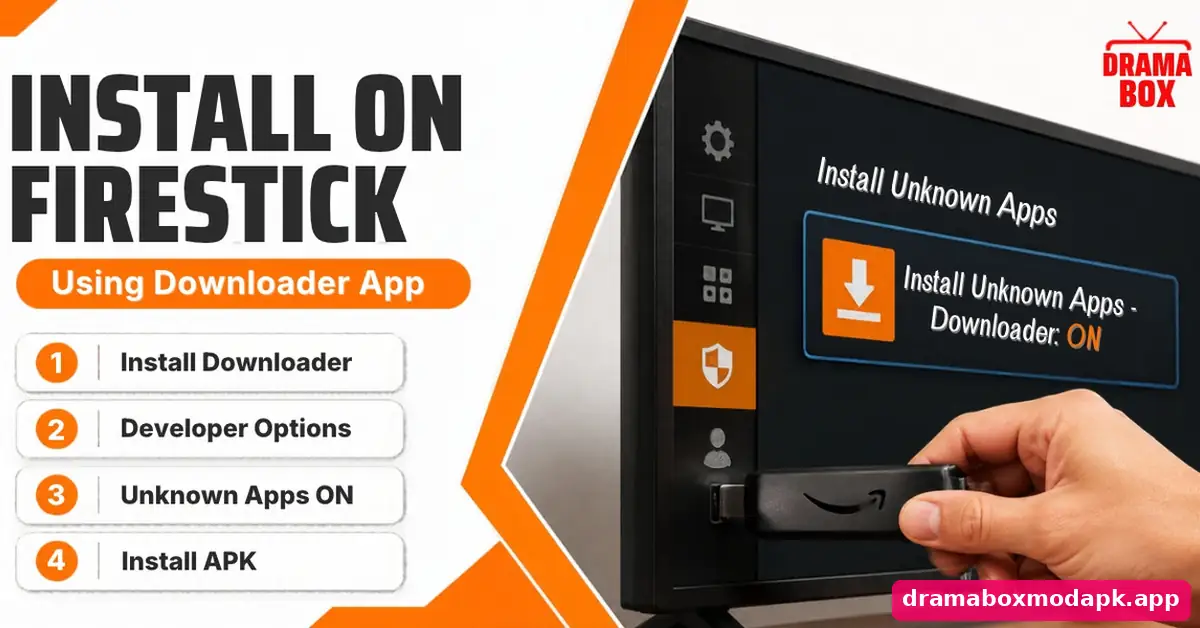
Amazon’s Appstore does not carry DramaBox, so a DramaBox Firestick setup relies on sideloading. The free Downloader app is the standard tool for this, and it is available directly from the Amazon Appstore. If the app installs but then shows a loading error on the TV, our DramaBox not loading fixes work on Fire TV as well.
- On the Firestick home screen, search for Downloader and install it.
- Go to Settings, then My Fire TV. If you do not see Developer Options, open About, highlight your device name and press the select button seven times to unlock it.
- Open Developer Options, choose Install Unknown Apps, and turn it on for Downloader only.
- Open Downloader, enter the APK download address, and let the file download.
- Select Install, then Done, and delete the APK file when Downloader offers to free up space.
Older Fire TV Stick models with 1 GB of RAM can struggle with the full app. If episodes stutter or the app closes, the smaller DramaBox Lite download is worth trying, especially on first-generation sticks with limited memory.
Method 3 – Cast DramaBox to TV From Your Phone
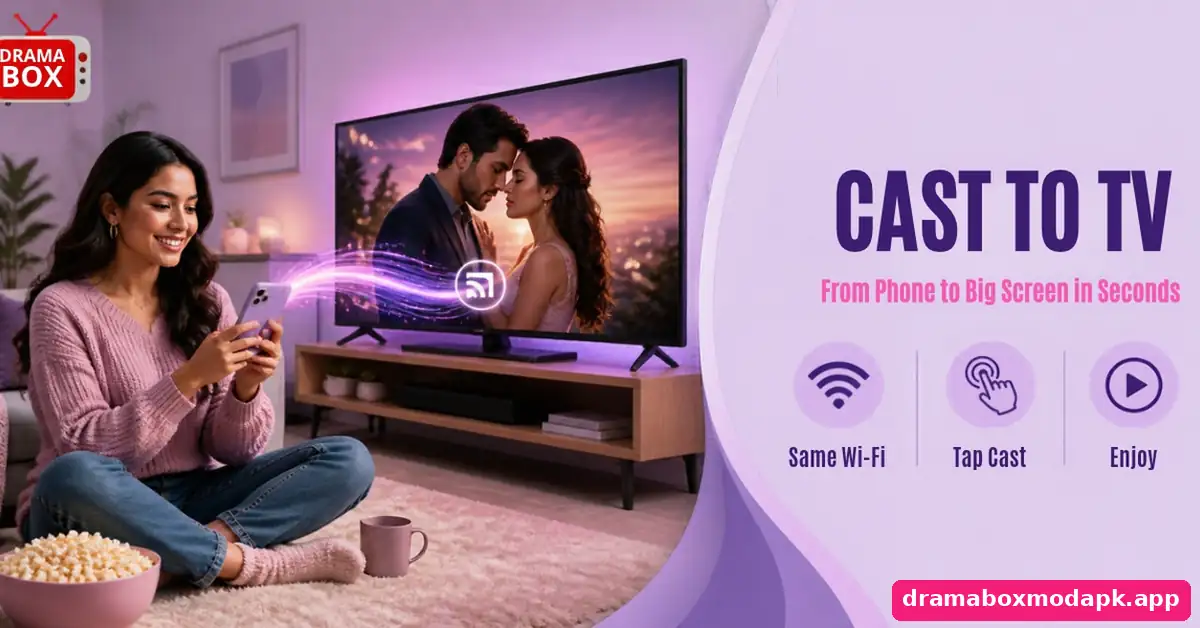
If you do not want to install anything on the TV, casting is the quickest way to cast DramaBox to TV. Connect your phone and TV to the same Wi-Fi. If the player shows a cast icon, tap it and choose your TV. If it does not, use Android’s built-in Cast or Screen Mirroring option from the quick settings panel, which sends your whole screen to any TV with Chromecast built in. If your Wi-Fi is unreliable, saving episodes first with our DramaBox episode download steps avoids buffering while you cast.
For DramaBox Chromecast viewing, turn your phone sideways and lock rotation, because vertical videos leave large black bars on a wide TV. iPhone users can mirror to an Apple TV or AirPlay-compatible TV instead, as covered in our DramaBox for iPhone users guide.
Method 4 – Android TV Boxes and Mi Box
A DramaBox Mi Box or generic Android TV box setup follows Method 1. Many cheaper boxes run a plain Android build rather than Android TV, which is actually an advantage: the phone app looks and works more naturally, and you can often use a wireless air mouse instead of a standard remote. Coins and VIP bought on your phone work on the box too, and our DramaBox coins and VIP price guide explains how to earn more.
If your DramaBox TV box has very little storage, keep downloads off and stream instead. Boxes with less than 8 GB of storage fill up quickly with cached video, which leads to freezes after a few days of use. Those who prefer a large monitor over a TV can also follow our DramaBox on computer setup using an emulator.
Making a Phone App Work With a TV Remote
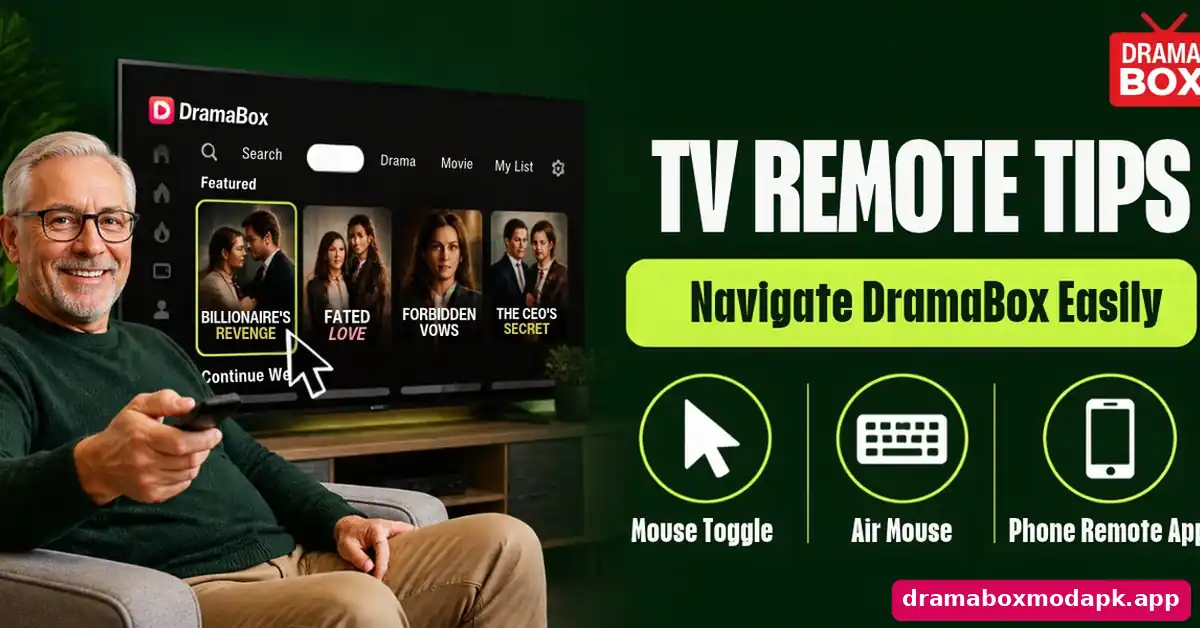
Because DramaBox is designed for touch, some buttons are hard to reach with arrow keys. Three fixes help a lot. First, install a mouse-toggle app, which lets you switch the remote into a pointer by double-pressing the play button. Second, pair a cheap Bluetooth air mouse or keyboard. Third, use your TV maker’s phone remote app, which adds a touchpad on your phone.
Swiping to the next episode is the hardest part on a TV. Most people find it easier to browse and pick a series on the phone, then let autoplay run on the television. Long, film-style titles like the ones in our roundup of free DramaBox movies suit TV viewing best, because they need fewer remote presses.
Common DramaBox TV Problems
Video appears tiny or sideways. The app is portrait-first. Use a rotation-control app to force landscape, or simply accept the vertical frame, which is how the series were filmed. “App not compatible” message: some TVs block phone-only apps in their store, so sideload the APK instead of searching the store. Very old sticks and boxes on outdated firmware may also need an earlier build from our DramaBox old releases page.
Buffering on the TV but not the phone. TVs often sit far from the router. Use the 5 GHz band or an Ethernet adapter, and lower the playback quality. If you only want to preview a series, the DramaBox YouTube episode uploads play through the TV’s own YouTube app with no sideloading at all.
Coins or unlocked episodes missing. You are probably signed in as a guest. Log in with your phone account, and your balance and unlocked episodes appear; our walkthrough on getting DramaBox episodes without paying also works the same way on a TV.
Is Sideloading on a TV Safe?
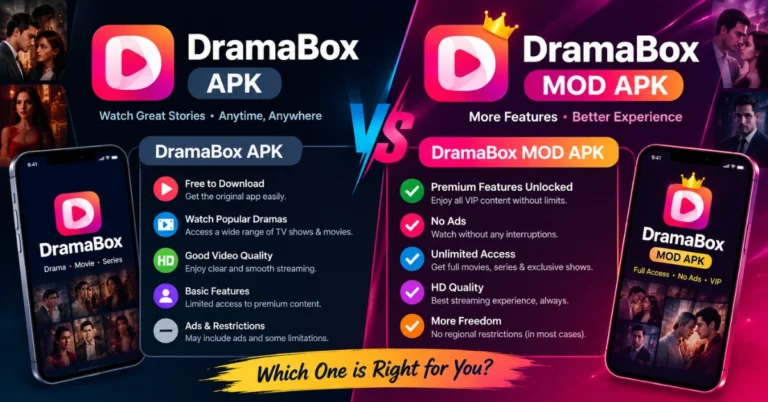
Sideloading itself is a normal Android feature, but it removes the store’s safety checks, and TVs rarely have antivirus apps. Only allow unknown sources for the one app you install from, such as Downloader, and switch it off again afterwards. A TV is connected to your home network around the clock, so a bad file there can be more annoying to notice than on a phone. If you are unsure which file you have, the real gap between the official APK and a modified one is worth understanding before you install anything.
Modified builds add another layer of risk because nobody official has checked them. Before installing one on a family TV, read our DramaBox MOD APK safety review first. We cannot guarantee that any third-party file is completely safe, and you should never type a payment card into an app you sideloaded.
My Experience Watching DramaBox on TV
I set DramaBox up on a Fire TV Stick and an Android TV in the same week, mainly so my family could watch a series together instead of crowding around one phone. The Android TV install took about five minutes. The Firestick took longer, mostly because I had to unlock Developer Options first, which is hidden on newer sticks until you tap the device name seven times.
Navigation was the real challenge. Moving between episodes with arrow keys was slow until I installed a mouse-toggle app, and after that it felt almost natural. The vertical video looked odd on a wide screen at first, but by the third episode nobody cared. In the end, casting from my phone became the method I used most, because I could browse comfortably on the phone while the TV simply played the story.
Final Thoughts
Watching DramaBox on a TV is easy once you match the method to your hardware. Android TV and TV boxes take the APK directly, a Firestick needs Downloader and one extra settings step, and casting works on almost anything with Chromecast or screen mirroring. Add a pointer or air mouse for comfortable navigation, keep unknown sources switched off when you are done, and sign in with your phone account so your coins follow you to the big screen.
Frequently Asked Questions
Is DramaBox available on the Amazon Appstore for Firestick?
Can I watch DramaBox on a Samsung or LG smart TV?
Will my coins and VIP work on the TV?
Why does DramaBox look vertical on my TV?
Do I need a VPN on the Firestick?
Is casting better than installing on the TV?